Introduction
Imagine the following situation: Your phone gets a software update and, after installing it, silently changes some privacy-related settings — for example, the option to store location data in newly taken photos and videos. I discovered this about a year later and found thousands of pictures and videos without location tags. Manually fixing them was out of the question, so I started looking for a better way.
Luckily, ExifTool already provides everything needed to restore GPS coordinates automatically.
Prerequisites
This article uses fish shell 4.2.1, Neovim v0.11.4, and ExifTool 13.36.
The images and location history are taken from an Android device.
The location data is exported from the same phone and saved as location-history.json.
Export location data from Android
This depends a lot on your Android version. In this case the data comes from the phone itself which can be found under Settings -> Location -> Export.
Selection
My recommendation is to work on a copy of your data so you can safely restart if something goes wrong.
It also makes sense to limit the operation to files that lack GPS tags. Here again, ExifTool is helpful because it can print specific EXIF fields in table format, which we can then filter.
exiftool -T -gpslatitude -gpslongitude -filename . |\
    # here we filter out the files that have gps tags
    grep -E "^-" |\
    # cut out part before filename
    string replace -r -a '\-\s+\-\s+' '' > noGpsTagsFiles.txt
In case of a subfolder structure we can gather all files using find.
for i in (find . -type f -regex ".*\.\(jpeg\|jpg\|mp4\|mov\)")
    exiftool -T -gpslatitude -gpslongitude -filename $i | grep -E "^-"
    # check if we found a file lacking gps info
    if test $status -eq 0
        echo $i >> noGpsTagsFiles.txt
    end
end
Once we’ve identified all files without GPS tags, let’s copy them into a working directory. This way we can experiment safely before touching the originals.
mkdir toEdit
for i in (cat noGpsTagsFiles.txt)
    cp -a $i toEdit/
end
Pictures
It’s easiest to start with a single file and check if it gets updated. The -P switch helps us to keep all other metadata untouched.
exiftool -geotag ../location-history.json -P -ext jpg IMG123.jpg
Whether or not a file can get updated depends a lot on the quality of the location data. To compare the result with the original it is possible to use the default backup file that ExifTool creates automatically.
nvim -d (exiftool IMG123.jpg | psub) (exiftool IMG123.jpg_original | psub)
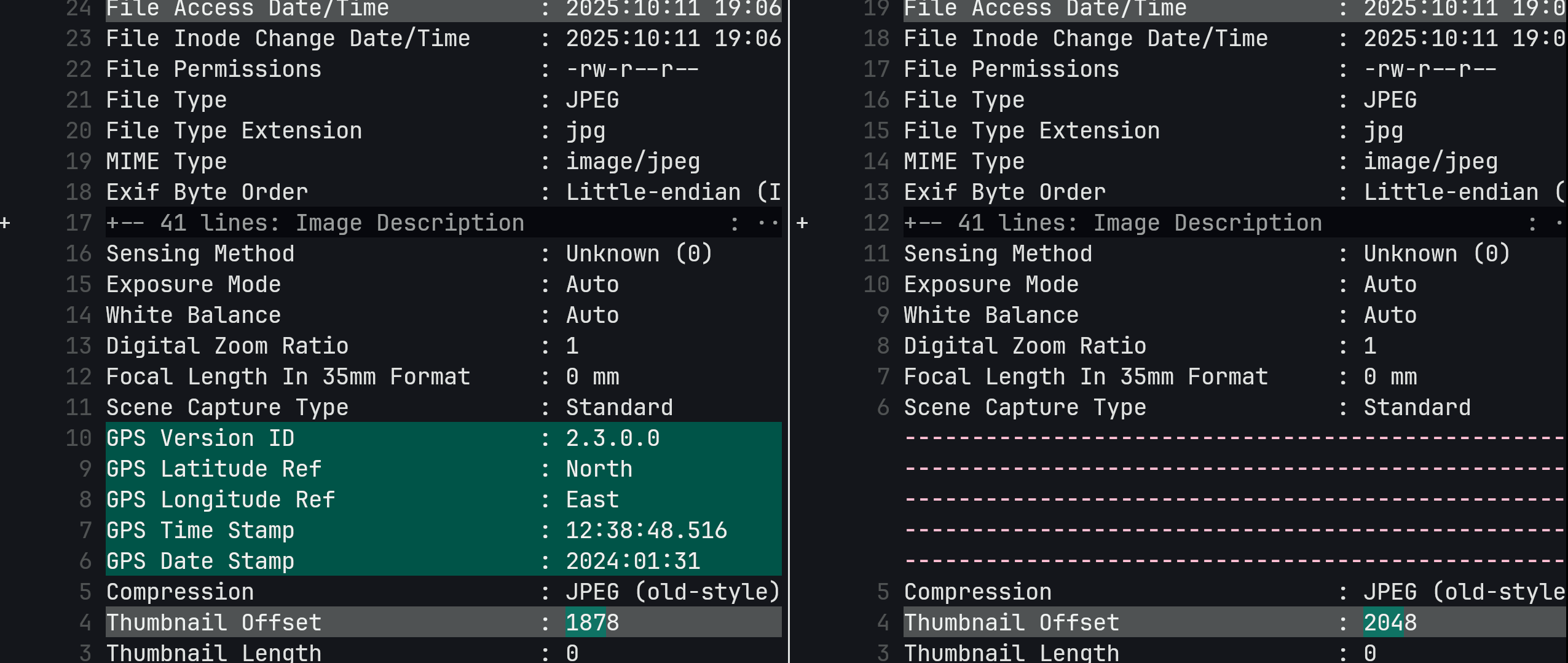 On the left side, we can see the new GPS entries that ExifTool added. That was the goal of this operation.
The thumbnail offset change is normal whenever EXIF data is updated.
On the left side, we can see the new GPS entries that ExifTool added. That was the goal of this operation.
The thumbnail offset change is normal whenever EXIF data is updated.
If you want to retry the command with different options you can always overwrite the new file with the backup.
for i in (find . -type f -name "*_original")
    mv -v "$i" "$(string replace '_original' '' $i)"
end
Once you are sure it works well, feel free to update all image files with -overwrite_original which prevents the creation of backup files.
exiftool -geotag ../location-history.json -P -overwrite_original -ext jpg .
The last step is of course to overwrite the original files with the modified ones.
Videos
We can repeat the same procedure for videos. The command differs slightly because we explicitly need to tell ExifTool which field contains the timestamp information that is compared to the gps timestamp.
exiftool -geotag location-history.json -ext mp4 "-keys:geotime<createdate" -P -overwrite_original .
Conclusion
With ExifTool, it is by far much easier to add missing GPS tags in an automatic way. Specially considering that it already supports out of the box the Android location data export. Once verified on a few test files, you can safely batch-process your entire collection and preserve your travel memories accurately.